
HHS OMH Knowledge Center User Guide
The HHS Office of Minority Health Knowledge Center online library catalog provides access to information dedicated to the health of racial and ethnic minority populations and American Indians/Alaska Natives within the United States and its territories. The collection includes documents, books, journal articles, and reports related to the health status of these populations.
For additional assistance with using or retrieving resources from the Knowledge Center, please contact KnowledgeCenter@hhs.gov.
Searching the Catalog
Basic Search
Typing a word or phrase, such as “nutrition” or “nutrition programs” (without quotation marks, unless seeking an exact phrase), into the Basic Search box will instruct the database to search for all words anywhere in the document records.

When using the Basic Search box, the entry automatically searches across the entire document record. This means the database will look for the keyword in titles, journal names, publishers, abstracts, subject headings, and more.
Boolean Search
For more specific or complex queries in Basic Search, you can try a Boolean search. Boolean searching uses a set of terms, called Boolean operators, to construct a search query. The most common Boolean operators are AND, OR, and NOT.
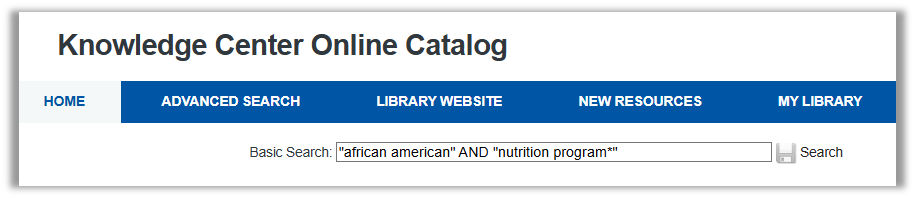
The asterisk ( * ) acts as the “wildcard” operator. It is most helpful when searching for a word with many variations. For example: nutri* will produce results that have keywords like nutrition, nutrient, nutrients, and nutritious.
Double quotation marks ( “ ” ) will group two or more words together in a phrase, and the catalog will only produce results containing that exact phrase.
| Search Phrase | Explanation of Results |
|---|---|
| nutrition AND program | Results will contain both nutrition and program somewhere in record |
| nutrition OR program | Results will contain either nutrition or program somewhere in record |
| "nutrition program" | Results will contain the exact phrase nutrition program somewhere in record |
| nutri* AND program | Results will contain words beginning with nutri- (e.g. nutrition, nutritious, nutrients), as well as the word program |
| nutrition NOT program* | Results will contain the word nutrition, but any results that also contain words beginning with program- (e.g. program, programs, programming) will be taken out |
Advanced Search
To narrow or expand the scope of your search, you can navigate to the Advanced Search tab and use multiple fields.
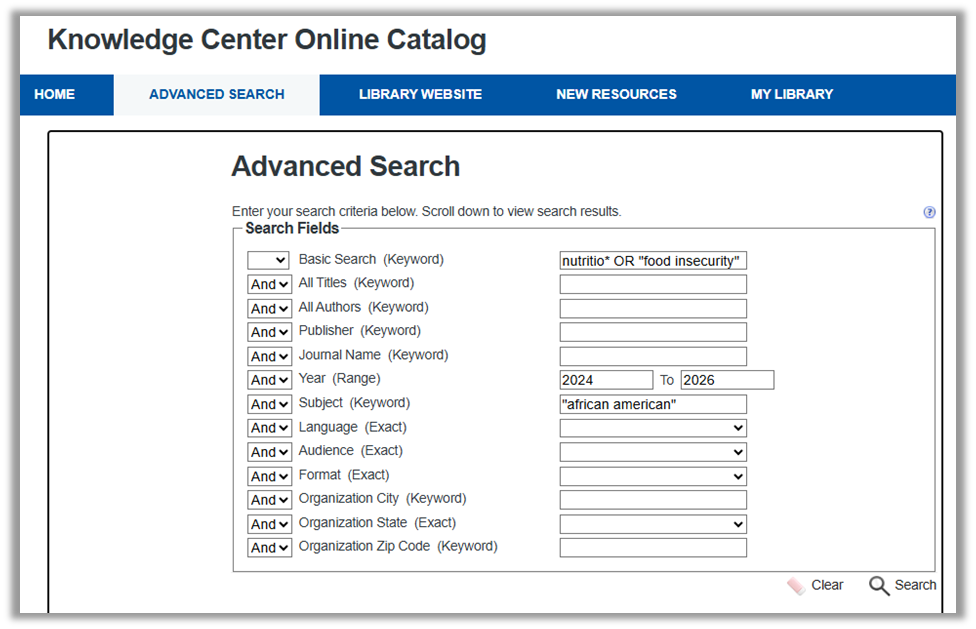
- Search by Publication Date: Limit search by year or a range of years.
- Search by Subject for Race/Ethnicity:
- To limit a search to a specific minority group, enter one or more of these phrases into the Subject box. To get results on more than one group, combine these terms using the AND/OR Boolean operators. Additional subgroup names can be entered into the Basic Search box.
- African American
- Alaska Native
- American Indian
- Asian
- Asian American
- Hispanic
- Native Hawaiians
- Pacific Islanders
- To limit a search to a specific minority group, enter one or more of these phrases into the Subject box. To get results on more than one group, combine these terms using the AND/OR Boolean operators. Additional subgroup names can be entered into the Basic Search box.
- Search by Format:
- To limit a search by type of publication, select one of the following terms from drop-down menu in the Format box:
- Articles — to find journal articles
- Document — to find reports, books, audiovisuals, factsheets, gray literature (research such as government reports, policy papers, and white papers published outside of traditional commercial or academic channels), etc.
- Fact Sheet — to find brief statistical or factual summaries on a topic
- To limit a search by type of publication, select one of the following terms from drop-down menu in the Format box:
- Search by Audience:
- To limit a search based on the intended audience and level of subject complexity, select one of the following terms from the drop-down menu in the Audience box:
- Consumers
- General Public
- Health Professionals
- Other Professionals
- Students
- To limit a search based on the intended audience and level of subject complexity, select one of the following terms from the drop-down menu in the Audience box:
Search Results
After clicking “Search,” scroll down the page to view the search results.
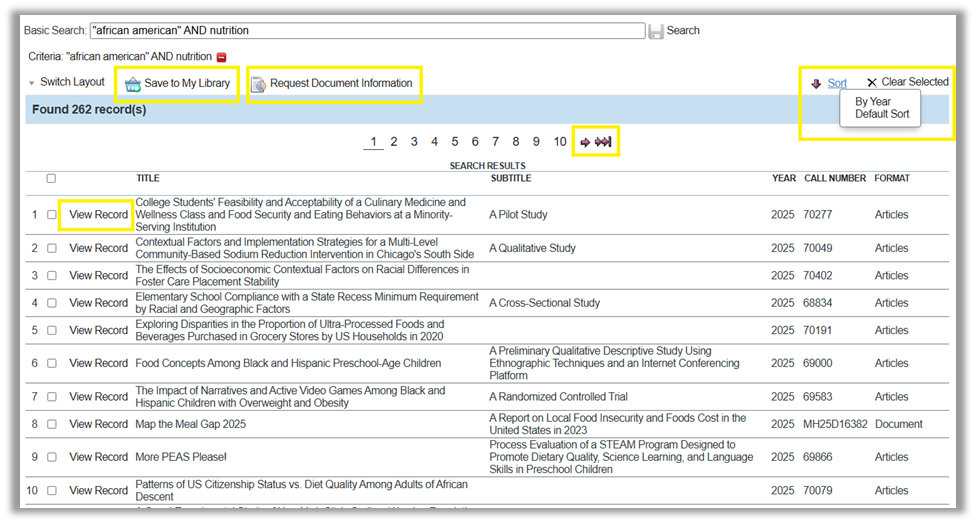
Additional actions:
- Sort by year to put the most recent publications at the top of the list. You can also sort by title by clicking the link “Title” at the top of that column.
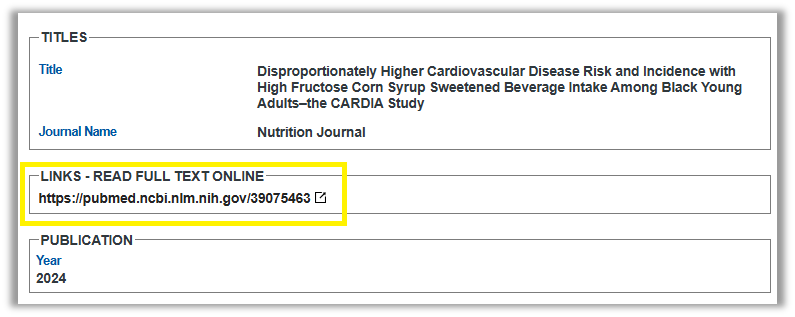
- Display full catalog record. Click “View Record” to display more detail. Click on the hyperlink in the box “Links - Read Full Text Online” to read available full text documents.
- Display additional results. If available, click the next and previous arrows on the results page.
- Print or export results. Select items and “Save to My Library”. Once selected, go to the My Library tab to print the report as a PDF, bibliographic list, or list in CSV format.
- Avoid stop words. Certain pronouns or action words can be interpreted as “stop words” and may yield zero results. Try to enter just primary keywords to obtain complete results, and avoid the words “he,” “use,” “not,” and “when.”
- Share favorites on social media. View a single title, then click on the social media icon to share on Facebook, X, or by email.
- Ask a librarian for help. On the search results page or within a single title, click “Request Document Information” to send an email to the OMHRC librarian to request assistance.
Catalog Records
Once you click on “View Record” from the search results page, you enter the full catalog record view. This contains detailed information about each record, including subject terms, authors, abstract (for documents), and links to access the full text.
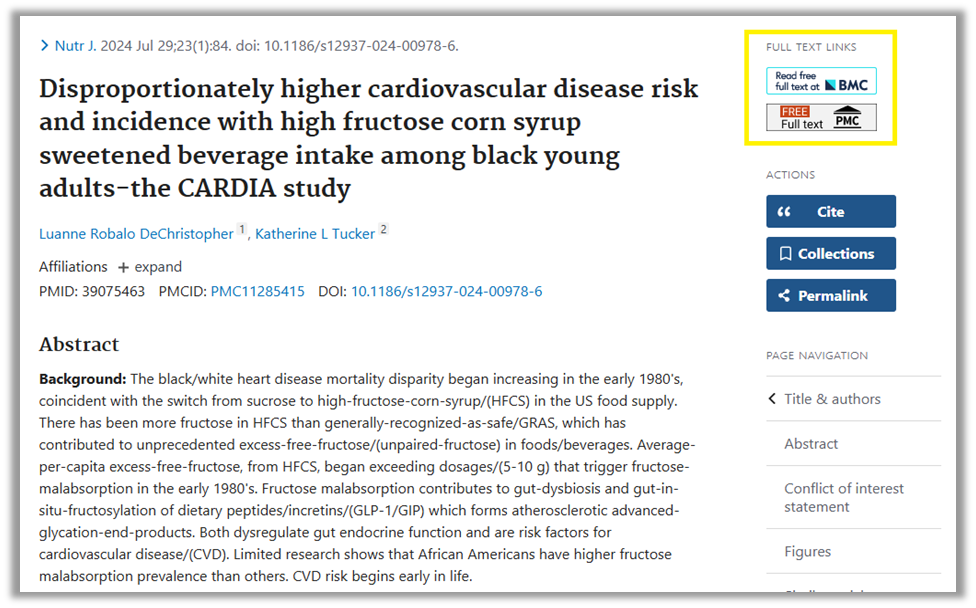
For Articles, the URL in “Links – Read Full Text Online” usually takes you to the PubMed abstract page. From there, you can choose one of the “Full Text Links” on the righthand navigation bar to access the full text of the article.